AMP Builder
latest

Installation

  • Server requirements
  • Creating a new database
  • Uploading Files
  • Change Domain Document Root
  • Permission
  • Installing
  • Updating
  • Changelog

Admin Mannual

  • Logging in
  • Templates
  • Manage Libraries

Configuration

  • Subdomain Publishing
  • Custom Domain Publishing
  • Email

CRM Configuration

  • Mailchimp
  • Saleforces
  • Infusionsoft(Keap)
  • Aweber
  • ZohoCRM
  • Hubspot

User Mannual

  • Loggin in/Registering
  • AMP Pages
  • Publishing & Domain names
  • Templates
  • Module
  • Section
  • Popup
    • Adding a Popup
    • Edit a Popup
    • Toogle a Sidebar or Lightbox
  • Carousel
  • Form
  • Form Integration
  • CRM Configuration
  • Google Recaptcha
AMP Builder
  • Docs »
  • Popup
  • Edit on GitHub

Popup

Adding a Popup

  • Open the Builder, click Add Popup button located on left side of the header.
  • Next, select your prefer popup type:
    • Sidebar: show from left or right side of the browser.
    • Notification: show when user visits this page.
    • Lightbox: show when user clicked a button.
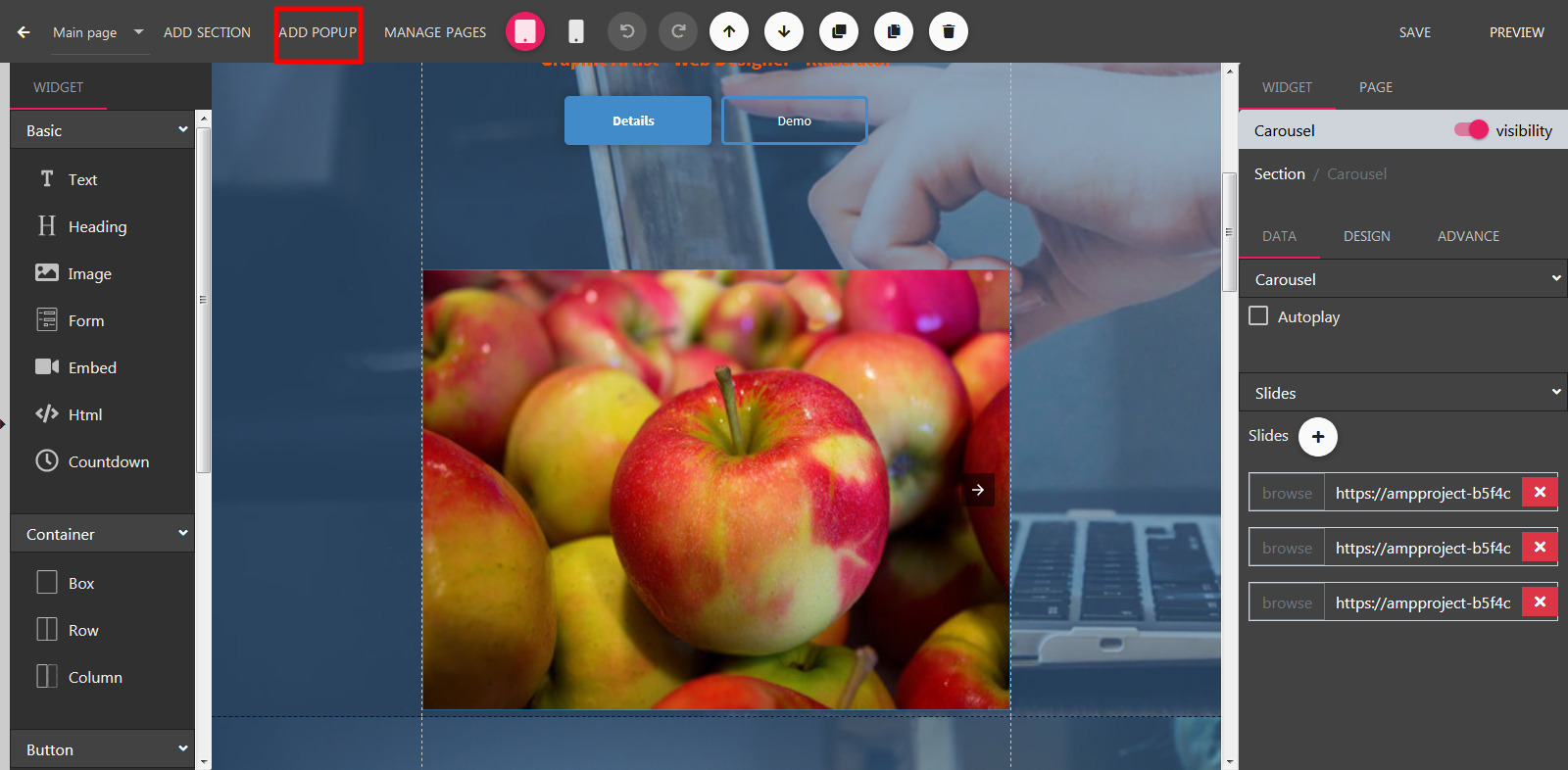
../_images/addpopup.jpg

Edit a Popup

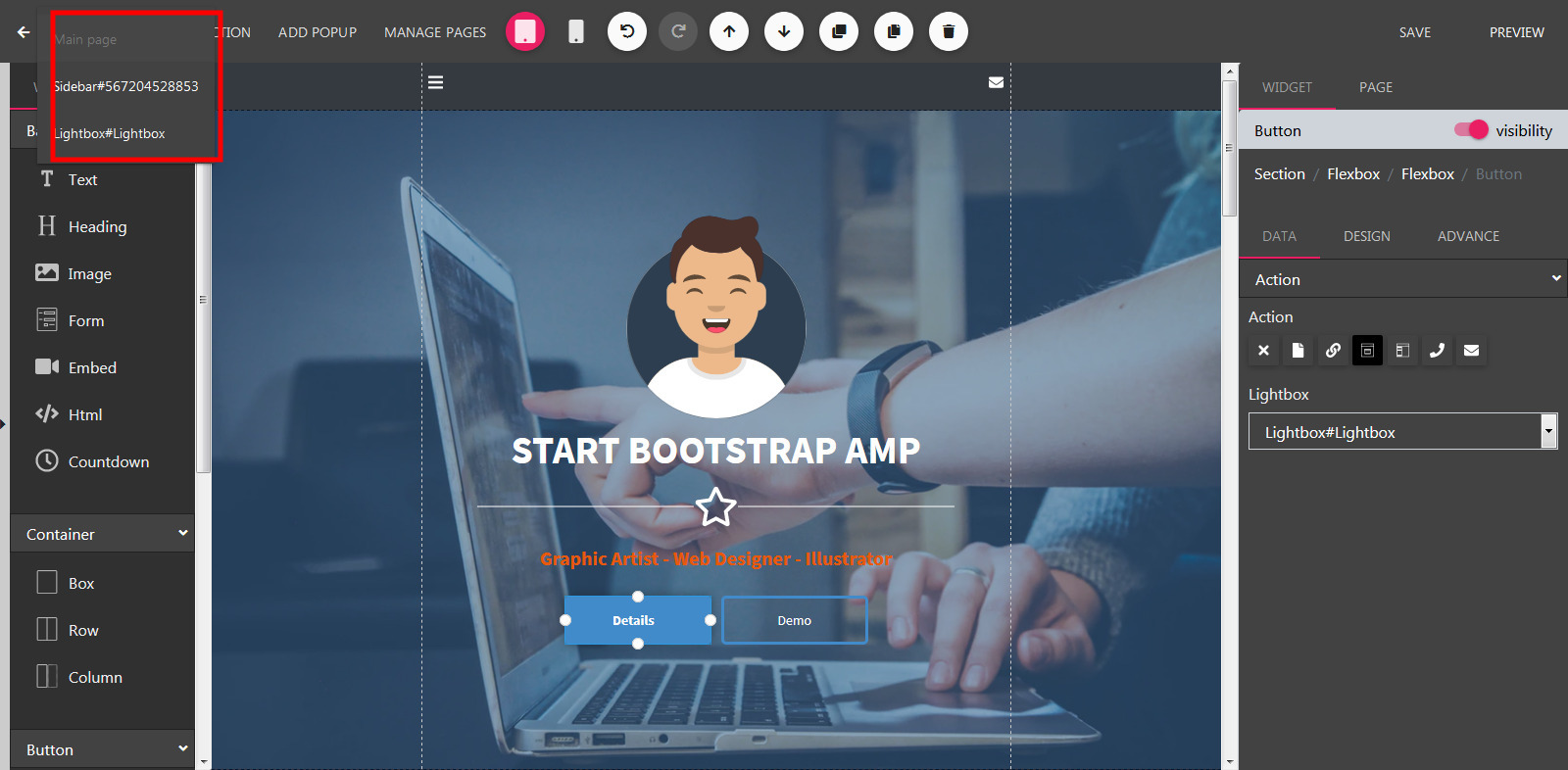
  • Still in the builder, click the Page Tabs dropdown located on the header
  • Select a popup on the menu dropdown.
../_images/editpopup.jpg

Toogle a Sidebar or Lightbox

  • Drag a Button or a SVG Shape from the left sidebar to builder.
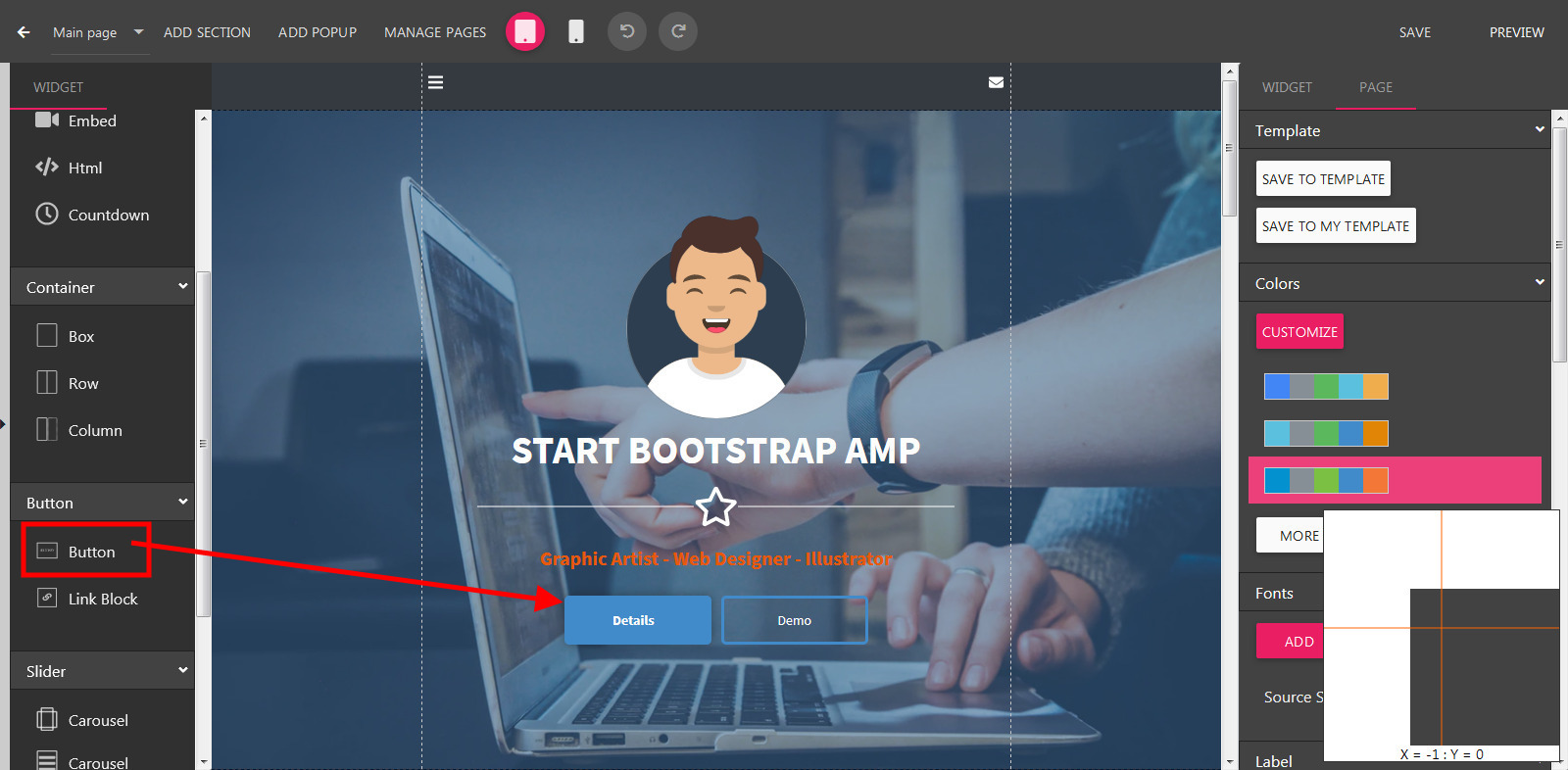
../_images/addbutton.jpg
  • Left click into this new module to change it to edit mode.
  • On the right panel, scroll down to show to Action section
  • In the Action dropdown, Select Open a Sidebar or Open a Popup. Then select relevant popup in the next dropdown.
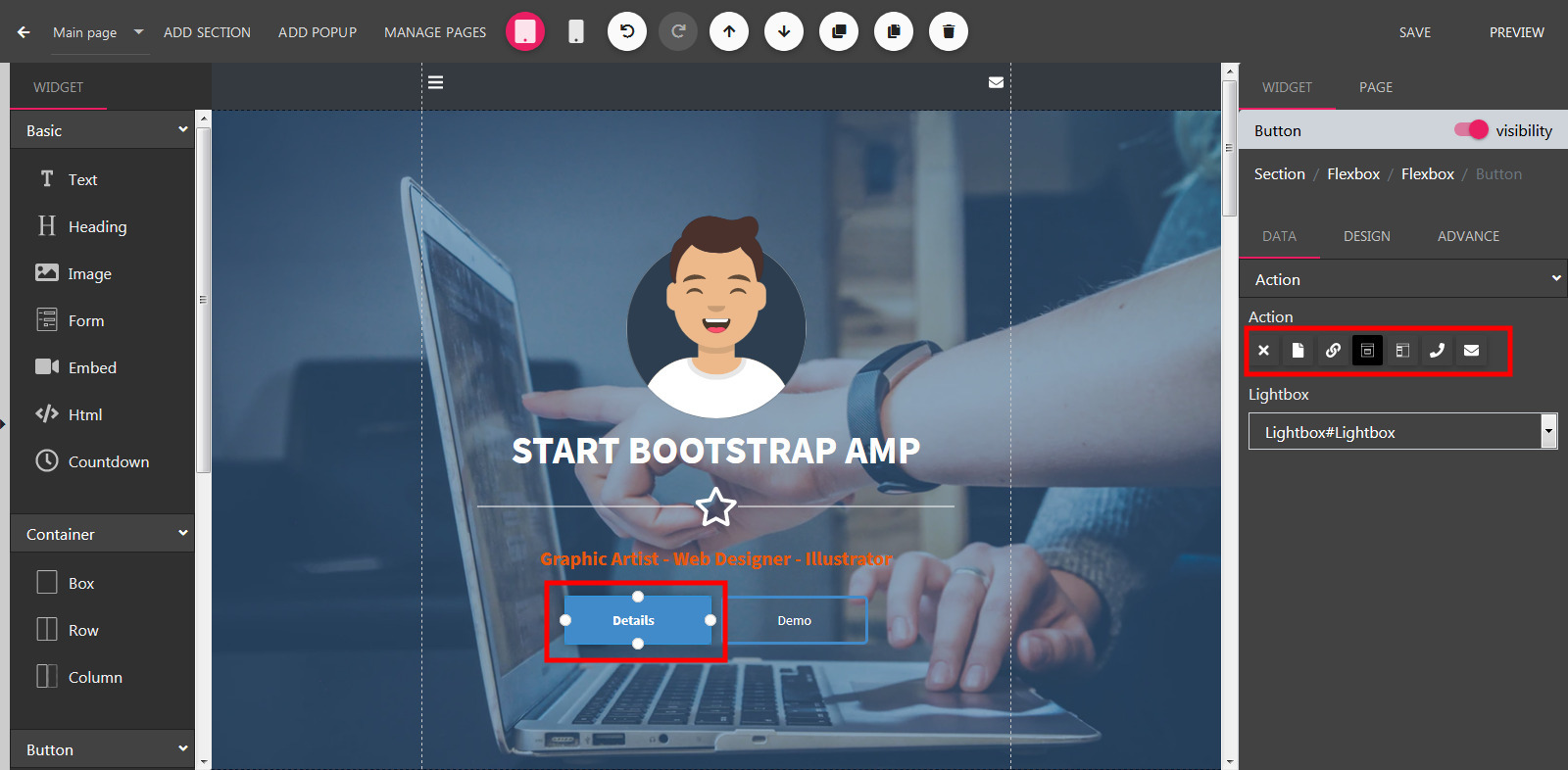
../_images/buttonaction.jpg
Next Previous

© Copyright 2019, STSEngine Revision 3a9dd254.

Built with Sphinx using a theme provided by Read the Docs.